Amazon Quick supports Model Context Protocol (MCP) integrations for action execution, data access, and AI agent integration. You can expose your application’s capabilities as MCP tools by hosting your own MCP server and configuring an MCP integration in Amazon Quick. Amazon Quick acts as an MCP client and connects to your MCP server endpoint to access the tools you expose. After that connection is in place, Amazon Quick AI agents and automations can invoke your tools to retrieve data and run actions in your product, using the customer’s authentication, authorization, and governance controls.
With an Amazon Quick and MCP integration you can build a repeatable integration contract: you define tools once, publish a stable endpoint, and support the same model across customers. You can build AI agents and automations in Amazon Quick to analyze data, search enterprise knowledge, and run workflows across their business. Your customers get a way to use your product inside Amazon Quick workflows, without building custom connectors for every use case.
In this post, you’ll use a six-step checklist to build a new MCP server or validate and adjust an existing MCP server for Amazon Quick integration. The Amazon Quick User Guide describes the MCP client behavior and constraints. This is a “How to” guide for detailed implementation required by 3P partners to integrate with Amazon Quick with MCP.
Solution overview
Amazon Quick includes an MCP client that you configure through an integration. That integration connects to a remote MCP server, discovers the tools and data sources the server exposes, and makes them available to AI agents and automations. MCP integrations in Amazon Quick support both action execution and data access, including knowledge base creation.
Figure 1. shows how customers use Amazon Quick to invoke application capabilities, exposed as MCP tools by ISVs, enterprise systems, or custom solutions through an MCP integration.
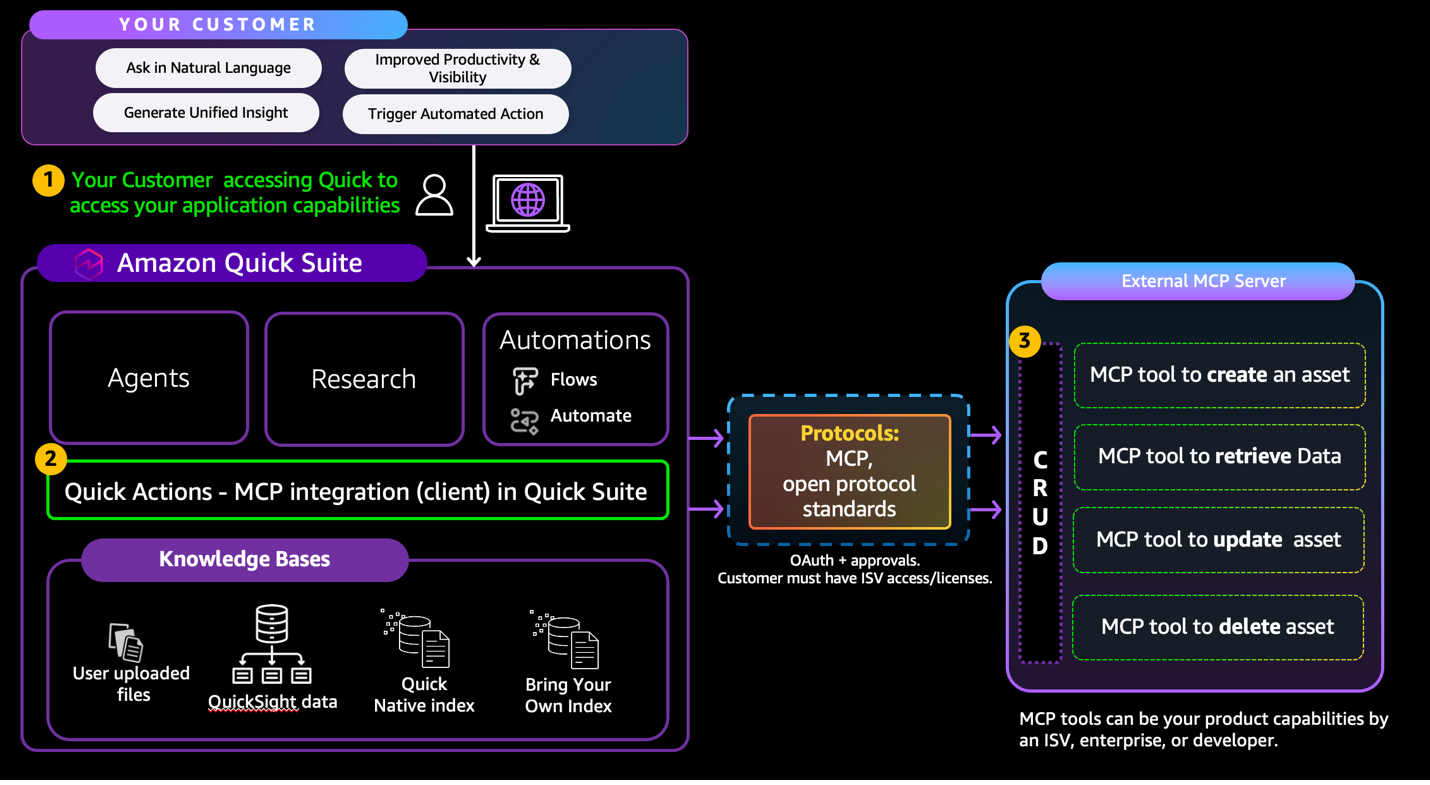
Figure 1. Amazon Quick MCP integration with an external MCP server that exposes application capabilities as MCP tools.
Prerequisites
- An Amazon Quick Professional subscription.
- An Amazon Quick user with Author or higher permissions to create action connectors.
- A remote MCP server endpoint that is reachable from the Amazon Quick.
- An authentication approach that your MCP server supports user authentication, service authentication or no authentication.
- A small initial set of product capabilities as APIs to be exposed as MCP tools (start with the operations your customers use most).
Checklist for Amazon Quick MCP integration readiness
Now let’s walk through the 6 steps process build the integration with Amazon Quick using MCP
- Step 1: Choose your MCP server deployment model.
- Step 2: Implement a remote MCP server compatible with Amazon Quick.
- Step 3: Implement authentication and authorization.
- Step 4: Document configuration for Amazon Quick customers
- Step 5: Register the MCP integration in Amazon Quick.
- Step 6: Test your actions and setup using out-of-the-box test action APIs tool in Amazon Quick.
Use the following steps to either build an MCP server for Amazon Quick or validate an existing server before customers connect it. Steps 1–4 cover server design, implementation, and documentation. Step 5 covers the Amazon Quick integration workflow customers run. Step 6 covers operations.
Step 1: Choose your MCP server deployment model
Decide how you will host your MCP endpoint and isolate tenants. Two common patterns work well:
- Shared multi-tenant endpoint: One MCP endpoint serves multiple customers. Your authentication and authorization layer maps each request to a tenant and user, and enforces tenant isolation on every tool call.
- Dedicated per-tenant endpoint: Each customer gets a unique MCP endpoint or server instance. You provision and operate a stable URL and credentials for each tenant.
Choose the model that matches your SaaS architecture and support model. If you already run a multi-tenant API tier with tenant-aware authorization, a shared MCP endpoint fits. If you need stronger isolation boundaries or separate compliance controls, dedicated endpoints reduce impact.
Step 2: Implement a remote MCP server compatible with Amazon Quick
Your MCP server must conform to the MCP specification and align with Amazon Quick client constraints. Focus on transport, tool definitions, and operational limits.
Transport and connectivity requirements:
- Expose your MCP server over a public endpoint that is reachable from Amazon Quick. Use HTTPS for production.
- Support a remote transport. Amazon Quick supports Server-Sent Events (SSE) and streamable HTTP. HTTP streaming is preferred.
Tool and resource requirements:
- Define MCP tools using JSON schema so the Amazon Quick MCP client can discover them and invoke them through
listToolsandcallTool. - Keep tool names consistent and version tool behavior intentionally. Amazon Quick treats the tool list as static after registration; administrators must reestablish the connection for the server side to reflect the changes.
- If your integration includes data access, expose data sources and resources so that Amazon Quick can use the sources to create knowledge bases.
Amazon Quick MCP client limitations:
As of today, you must consider the following when you design.
- Each MCP operation has a fixed 300-second timeout. Operations that exceed this limit fail with HTTP 424.
- Connector creation can fail if the Amazon Quick callback URI is not allow-listed by your identity provider or authorization server. See Step 3 for call back URIs details.
If your applications and service providers don’t have an MCP server, you can:
- Build and host your own MCP server using an MCP SDK that supports streamable HTTP or SSE. For MCP developer guidance, refer to the Model Context Protocol documentation. For code samples to host it in AWS, see the deployment guidance GitHub repository.
- Run your MCP server on Amazon Bedrock AgentCore Runtime, which supports hosting MCP servers in a managed way. For details about hosting agents or tools, see Host agent or tools with Amazon Bedrock AgentCore Runtime.
- Front existing REST APIs or AWS Lambda functions with Amazon Bedrock AgentCore Gateway, which can convert APIs and services into MCP-compatible tools and expose them through gateway endpoints. For an overview, see Introducing Amazon Bedrock AgentCore Gateway.
For an end-to-end Amazon Quick example that uses AgentCore Gateway as the MCP server endpoint, refer to Connect Amazon Quick to enterprise apps and agents with MCP. Similarly refer to Build your Custom MCP Server on Agentcore Runtime for a Code Sample.
Step 3: Implement authentication and authorization
Amazon Quick MCP integrations support multiple authentication patterns. Choose the pattern that matches how your customers want Amazon Quick to access your product, then enforce authorization on every tool invocation.
User authentication:
- Use OAuth 2.0 authorization code flow when Amazon Quick needs to act on behalf of individual users.
- Support OAuth Dynamic Client Registration (DCR) if you want Amazon Quick to register the client automatically. If you do not support DCR, document the client ID, client secret, token URL, authorization URL, and redirect URL that customers must enter during integration setup.
- Issue access tokens scoped to tenant and user, and enforce user-level role-based access control (RBAC) for every tool call.
Service authentication (service-to-service):
- Use service-to-service authentication when Amazon Quick should call your MCP server as a machine client (for example, shared service accounts or backend automation).
- Validate client-credential tokens on every request and enforce tenant-scoped access.
No authentication:
- Use no authentication only for public or demo MCP servers. For example, the AWS Knowledge MCP Server does not require authentication (but it is subject to rate limits).
If you front your tools with Amazon Bedrock AgentCore Gateway, Gateway validates inbound requests using OAuth-based authorization aligned with the MCP authorization specification. Gateway functions as an OAuth resource server and can work with identity providers such as Amazon Cognito, Okta, or Auth0. Gateway also supports outbound authentication to downstream APIs and secure credential storage. In this pattern, Amazon Quick authenticates to the Gateway using the authentication method you configure (for example, service-to-service OAuth), and Gateway authenticates to your downstream APIs.
Allowlist requirements for OAuth redirects (required for some IdPs) Some identity providers block OAuth redirects unless the redirect URI is explicitly allowlisted in the OAuth client configuration. If your OAuth setup fails during integration creation, confirm that your OAuth client app allowlists the Amazon Quick redirect URI for each AWS Region where your customers use Amazon Quick.
https://us-east-1.quicksight.aws.amazon.com/sn/oauthcallbackhttps://us-west-2.quicksight.aws.amazon.com/sn/oauthcallbackhttps://ap-southeast-2.quicksight.aws.amazon.com/sn/oauthcallbackhttps://eu-west-1.quicksight.aws.amazon.com/sn/oauthcallbackhttps://us-east-1-onebox.quicksight.aws.amazon.com/sn/oauthcallbackhttps://us-west-2-onebox.quicksight.aws.amazon.com/sn/oauthcallbackhttps://ap-southeast-2-onebox.quicksight.aws.amazon.com/sn/oauthcallbackhttps://eu-west-1-onebox.quicksight.aws.amazon.com/sn/oauthcallback
Step 4: Document configuration for Amazon Quick customers
Before connecting to Amazon Quick, verify your server’s baseline compatibility using the MCP Inspector. This standard developer tool acts as a generic MCP client, so you can test connectivity, browse your tool catalog, and simulate tool execution in a controlled sandbox. If your server works with the Inspector, it is protocol-compliant and ready for Amazon Quick integration.
Your integration succeeds when you’re able to authenticate into your MCP Server and test your actions using the Test APIs section and you can invoke these tools through Chat Agents and automations.
Add a Amazon Quick integration section to your product documentation that covers:
- MCP server endpoint: the exact URL customers enter in the Amazon Quick MCP server endpoint field.
- Authentication method: Which Amazon Quick option to choose (user authentication or service authentication or No Authentication), plus the fields and values required.
- OAuth details (if used): Required scopes, roles, and any prerequisites such as allow listing the Amazon Quick callback URI.
- Network and security notes: Any allow-list requirements, data residency constraints, or compliance implications.
- Tool catalog: The tools you expose, what each tool does, required permissions, and error behavior.
Step 5: Register the MCP integration in Amazon Quick
After your server is ready, your customer can create an MCP integration in the Amazon Quick console. This procedure is based on Set up MCP integration in the Amazon Quick User Guide.
- Sign in to the Amazon Quick console with a user that has Author permissions or higher.
- Choose Integrations.
- Choose Add (+), and then choose Model Context Protocol (MCP).
- On the Create integration page, enter a Name, an optional Description, and your MCP server endpoint URL. Choose Next.
- Select the authentication method your server supports (user authentication or service authentication), and then enter the required configuration values. If your MCP Server supports DCR, you will be skip the Authentication step and the client credentials exchange happens during the sign-in step.
- Choose Create and continue. Review the discovered tools and data capabilities from your MCP server, and then choose Next.
- If you want other users to use the integration, share it. When you are finished, choose Done.
Amazon Quick does not poll for schema changes. If you modify tool signatures or add new capabilities, you must advise your customers to re-authenticate or refresh their integration settings to enable these updates.
Step 6: Operate, monitor, and meter your MCP server
Treat your MCP server as production API surface area. Add the operational controls you already use for your SaaS APIs, and make them tenant-aware.
- Logging and observability: Log each tool invocation with tenant identifier, user identifier (when available), tool name, latency, status, and error details.
- Throttling and quotas: Enforce per-tenant rate limits to protect downstream systems and return clear throttling errors.
- Versioning: Coordinate tool changes with your documentation and your customers’ refresh workflow. Treat tool names and schemas as a contract.
- Security operations: Support credential rotation, token revocation, and audit trails for administrative actions.
- Metering (optional): Record usage per tenant (for example, tool calls or data volume) to align with your SaaS pricing or AWS Marketplace metering.
Clean up
If you created a Amazon Quick MCP integration for testing, delete it when you no longer need it.
To delete an integration, follow Integration workflows in the Amazon Quick User Guide. The high-level steps are:
- In the Amazon Quick console, choose Integrations.
- From the integrations table, select the integration you want to remove.
- From the Actions menu (three-dot menu), choose Delete integration.
- In the confirmation dialog, review the integration details and any dependent resources that will be affected.
- Choose Delete to confirm removal.
If you used OAuth for the integration, also revoke the Amazon Quick client in your authorization server and delete any test credentials you created.
Conclusion
Amazon Quick MCP integrations give your customers a standard way to connect AI agents and automations to your product. When you expose your capabilities as MCP tools on a remote MCP server, customers can configure the connection in the Amazon Quick console and use your tools across multiple workflows.
Start with a small set of high-value tools, design each tool call to complete within the 300-second limit, and document the exact endpoint and authentication settings customers must use. After you validate the integration workflow in Amazon Quick , expand your tool catalog and add the operational controls you use for any production API.
For next steps, review the Amazon Quick MCP documentation, then use the checklist in this post to validate your server. If you want AWS options to build and host MCP servers, refer to the AgentCore documentation and Deploying model context protocol servers on AWS.