Modern enterprises face significant challenges connecting business intelligence platforms to cloud data warehouses while maintaining automation. Password-based authentication introduces security vulnerabilities, operational friction, and compliance gaps—especially critical as Snowflake is deprecating username password.
Amazon Quick Sight (a capability of Amazon Quick Suite) now supports key pair authentication for Snowflake integrations, using asymmetric cryptography where RSA key pairs replace traditional passwords. This enhancement addresses a critical need as Snowflake moves toward deprecating password-based authentication, which requires more secure authentication methods. With this new capability, Amazon Quick Suite users can establish secure, passwordless connections to Snowflake data sources using RSA key pairs, providing a seamless and secure integration experience that meets enterprise security standards.
In this blog post, we will guide you through establishing data source connectivity between Amazon Quick Sight and Snowflake through secure key pair authentication.
Prerequisites
Before configuring key pair authentication between Amazon Quick Suite and Snowflake, ensure that you have the following:
- An active Amazon Quick Suite account with appropriate permissions – You need administrative access to create and manage data sources, configure authentication settings, and grant permissions to users. Amazon Quick Suite Enterprise license or Author role in Amazon Quick Suite Enterprise Sight Edition typically provide sufficient access.
- A Snowflake account with ACCOUNTADMIN, SECURITYADMIN, or USERADMIN role – These elevated permissions are essential for modifying user accounts, assigning public keys using ALTER USER commands, and granting warehouse and database permissions. If you don’t have access to these roles, contact your Snowflake administrator for assistance.
- OpenSSL installed (for key generation) – This cryptographic toolkit generates RSA key pairs in PKCS#8 format. Most Linux and macOS systems include OpenSSL pre-installed. Windows users can use Windows Subsystem Linux (WSL) or download OpenSSL separately.
- (Optional) AWS Secrets Manager access (for API-based setup) – Required for programmatic configurations, you will need IAM permissions to create and manage secrets, and Amazon Quick Sight API access for automated deployments and infrastructure as code (IaC) implementations.
Solution walkthrough
We will guide you through the following essential steps to establish secure key pair authentication between Amazon Quick Sight and Snowflake:
- Generate RSA Key Pair – Create public and private keys using OpenSSL with proper encryption standards
- Configure Snowflake User – Assign the public key to your Snowflake user account and verify the setup
- Establish Data Source Connectivity – Create your connection through either the Amazon Quick Suite UI for interactive setup or AWS Command Line Interface (AWS CLI) for programmatic deployment
Let’s explore each step in detail and secure your Amazon Quick Sight-Snowflake connection with key pair authentication!
Generate RSA key pair:
- Navigate to AWS CloudShell in AWS Management Console and execute the following command to generate the RSA private key. You will be prompted to enter an encryption passphrase. Choose a strong passphrase and store it securely—you will need this later when generating the public key.

- Run the following commands to create a public key pair. You will be prompted to enter the phrase that you used in the previous step.

- Extract the private key content (including header and footer):
This displays your private key in the format:
-----BEGIN PRIVATE KEY-----[key content]-----END PRIVATE KEY-----
Note: Copy the entire output including the -----BEGIN PRIVATE KEY----- and -----END PRIVATE KEY----- lines. You will use this complete private key (with headers and footers) when creating your Snowflake data source connection.
- Snowflake requires the public key in a specific format without headers or line breaks. Run these commands to extract and format the key properly.

This will display your formatted public key string. Copy this output—you will use it in the next step to configure your Snowflake user account.
Assign public key to Snowflake user:
- Log in to Snowflake and execute the following SQL commands to assign the public key to your user:
- Verify the key assignment: Look for the
RSA_PUBLIC_KEYproperty to confirm if the public key is set.
Establish your Snowflake connection in Amazon Quick Suite UI:
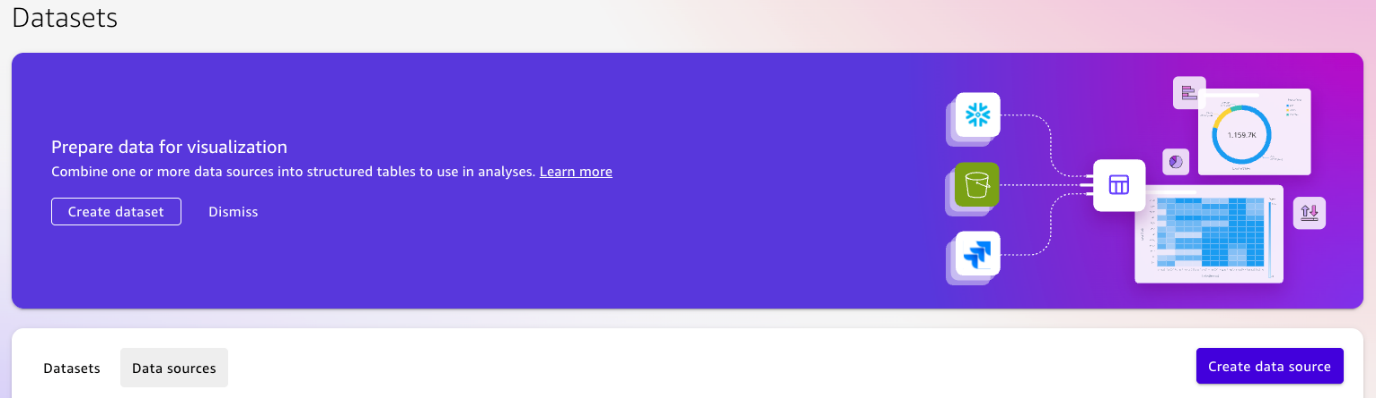
- Navigate to Amazon Quick Suite in AWS Management Console and select Datasets. Then select the Data sources tab and choose Create data source.
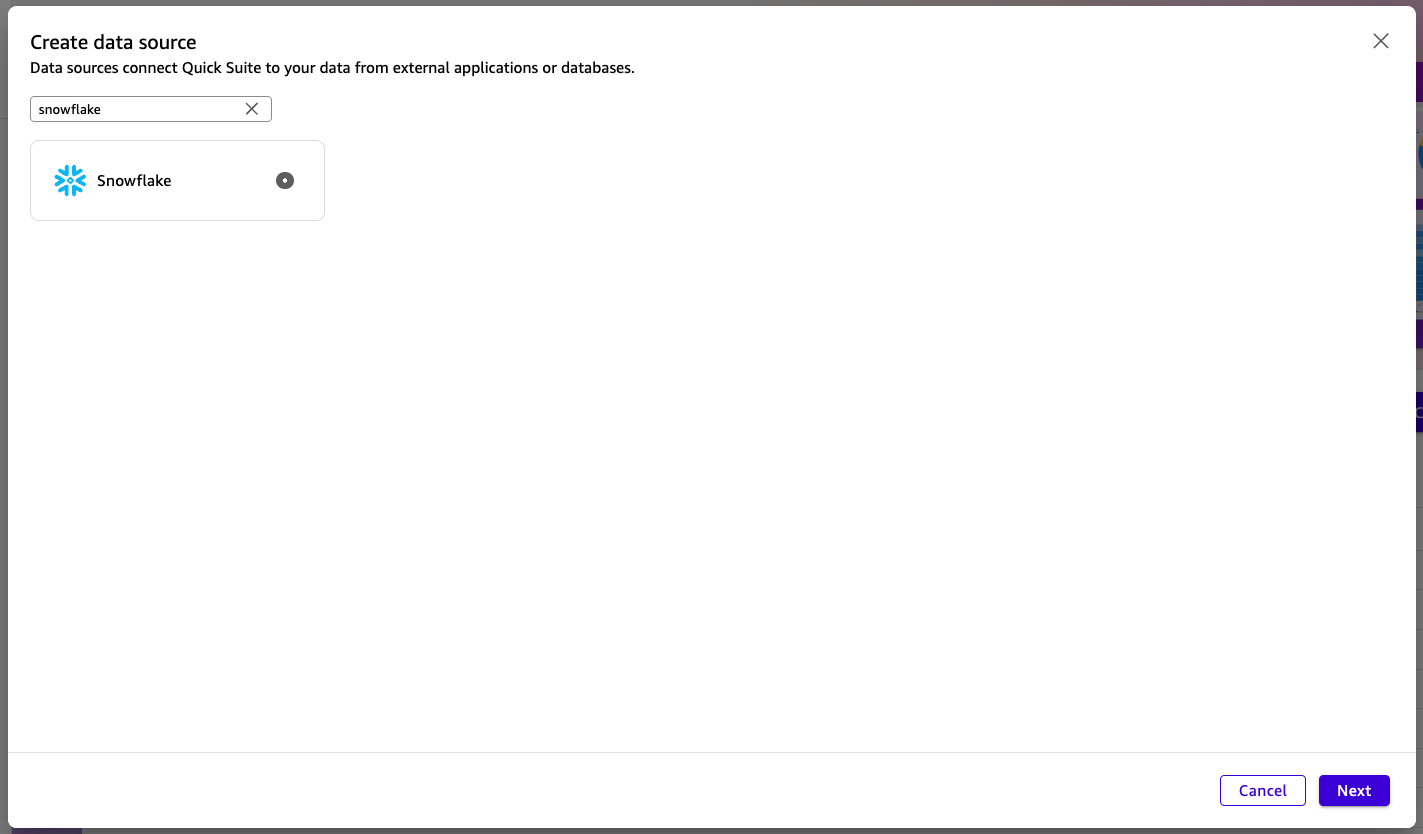
- In the Create data source pane, enter “snowflake” in Search datasets, select Snowflake, and then choose Next.
- In the New Snowflake data source pane, enter the data source name, then enter the connection type as Public Network or a Private VPC Connection. If you need a VPC connection, see configure the VPC connection in Quick Suite.
- Then, enter the database server hostname, database name, and warehouse name.
- Select Authentication Type as KeyPair and then enter the username of the Snowflake user.
- In the Private Key field, paste the complete output from
cat rsa_key.p8(including the BEGIN and END headers). If you have configured a passphrase during key generation, provide it in the optional Passphrase field. - After all the fields are entered, select the Validate connection button.
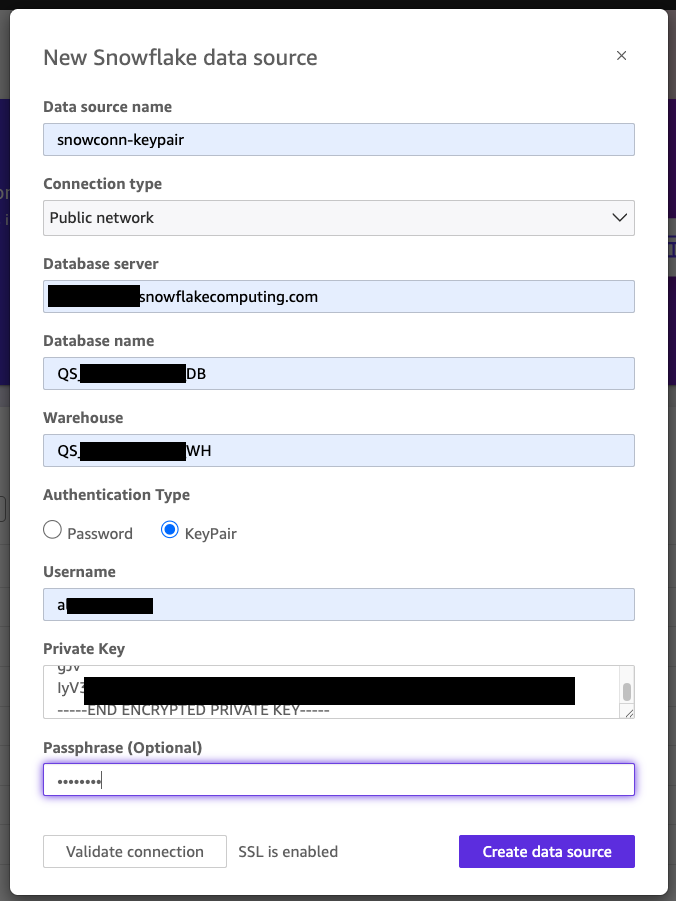
- After the connection is validated, select the Create data source button.
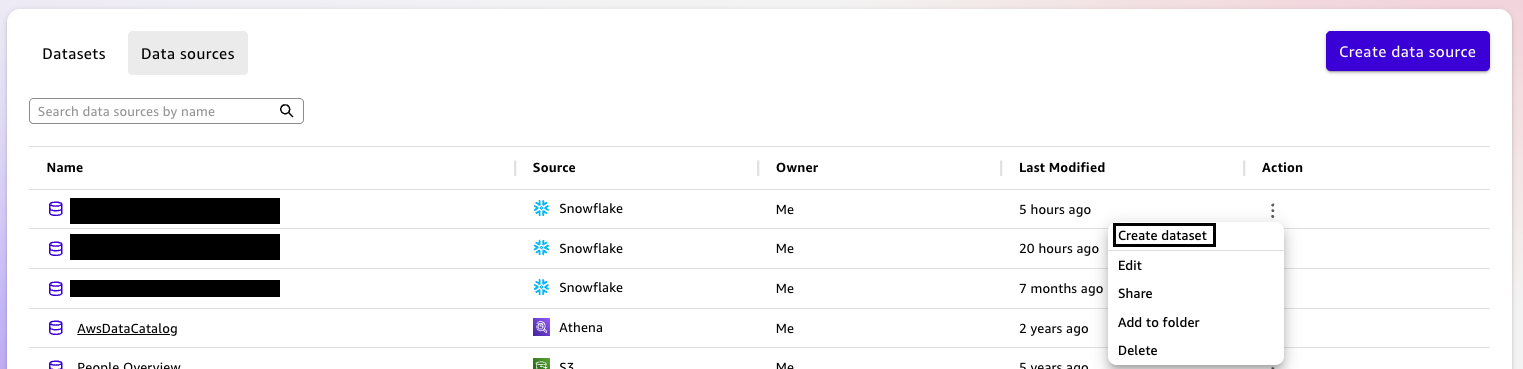
- Then in the Data sources list, find the snowflake data source that you created.
- From the Action menu, select the Create dataset option.
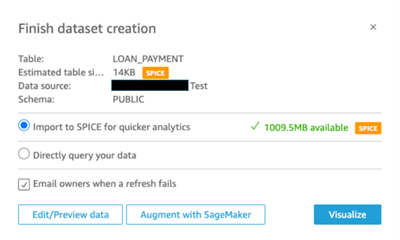
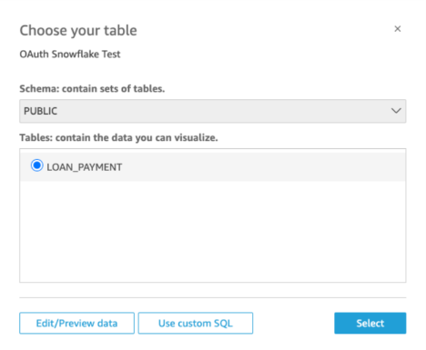
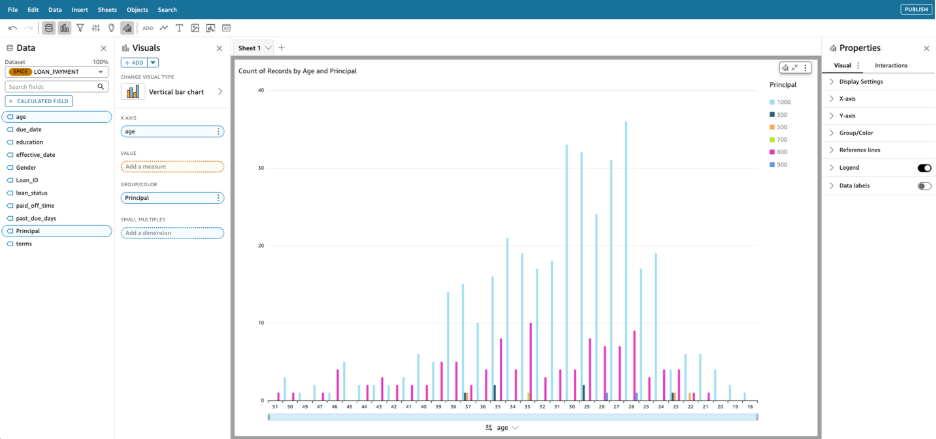
Establish your Snowflake Connection using the Amazon Quick Sight API:
Using AWS CLI, create the Amazon Quick Suite data source connection to Snowflake by executing the following command:
Use the following command to check the status of creation:
Initially, the status returned from the describe-data-source command will be CREATION_IN_PROGRESS. The status will change to CREATION_SUCCESSFUL if the new data source is ready for use.
Alternatively, when creating the data source programmatically via CreateDataSource, you can store the username, key and passphrase in AWS Secrets Manager and reference them using the Secret ARN.
After the data source is successfully created, you can navigate to the Quick Suite console. In the Create a Dataset page, you can view the newly created data source connection awsclikeypairtest under the data sources list. You can then continue to create the datasets.
Cleanup
To clean up your resources to avoid incurring additional charges, follow these steps:
- Delete the secret created in the AWS Secrets Manager Console.
- Delete the data source connection created in Amazon Quick Suite.
Conclusion
Key pair authentication represents a transformative advancement in securing data connectivity between Amazon Quick Suite and Snowflake. By removing password-based vulnerabilities and embracing cryptographic authentication, organizations can achieve superior security posture while maintaining seamless automated workflows. This implementation addresses critical enterprise requirements, such as enhanced security through asymmetric encryption, streamlined service account management, and compliance with evolving authentication standards as Snowflake transitions away from traditional password methods.
Whether deploying through the intuitive Amazon Quick Suite UI or using AWS CLI for Infrastructure as Code implementations, key pair authentication provides flexibility without compromising security. The integration with AWS Secrets Manager helps protect the private keys, while the straightforward setup process enables rapid deployment across development, staging, and production environments.
As data security continues to evolve, adopting key pair authentication positions your organization at the forefront of best practices. Business intelligence teams can now focus on extracting actionable insights from Snowflake data rather than managing authentication complexities, ultimately accelerating time-to-insight and improving operational efficiency.
For further reading, see Snowflake Key-Pair Authentication.